Issue:
When attempting to restart an Azure Virtual Machine (VM), the VM may become stuck in a “Starting” or “Restarting” state for an extended period. This can occur due to various reasons, such as host-level failures, underlying infrastructure issues, or a stuck process in the VM.
Solution:
Step 1: Navigate to your VM in Azure portal and check in Overview –> Status section.
If you find the status as “Starting” or “Restarting” state for more than 10 -15 minutes, then VM stuck in this state. At that point, you may need to consider force step and start of VM.
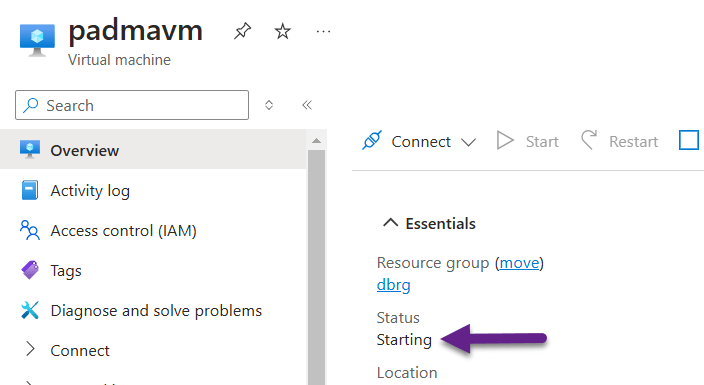
Step 2: Click on Stop to shutdown the VM. If it still doesn’t stop after a few minutes, you can try deallocating the VM by clicking Deallocate which frees up resources. Please make a note that deallocation sometimes takes longer than expected (more than 60 mins depending on VM size).
Step 3: Once VM has been successfully stopped, click Start to restart it.
In my experience, restarting VM from Azure Cli is much faster and below are handy commands to restart VM from Azure Cli.
Stop VM command:
az vm deallocate –resource-group –name <VMName>
Start VM command:
az vm start –resource-group –name <VMName>
Step 4: If the VM remains stuck, check the Service Health in Azure to see if there are any ongoing issues in the region or with the specific VM host. You can also move the VM to a different host using the Redeploy feature.
In the Azure Portal, Go to your VM and help, select Redeploy + reapply. This will move the VM to a new host, which often resolves stuck VM issues
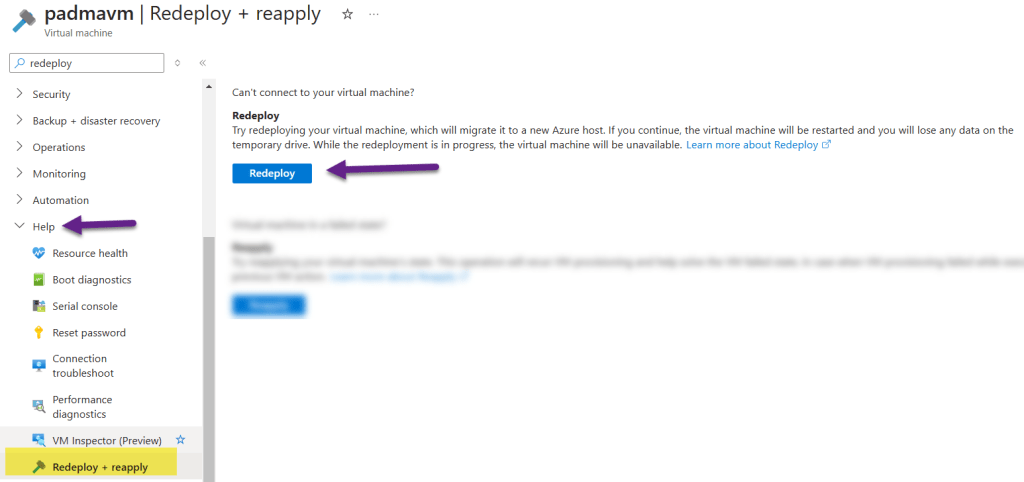
Redeploy VM Command:
az vm redeploy –resource-group –name <VMName>
This should resolve the issue of the VM being stuck in a “Starting” or “Restarting” state.
Happy Learning 🙂
 Padma Achanta's Insights on Database Technologies