Terraform, an open-source software, simplifies the management and organization of infrastructure components, such as servers, networks, and databases, whether in cloud environments or on premises. Users create configuration files that outline their requirements rather than configuring each infrastructure element manually. The terraform then handles the creation, modification, or removal of resources to align with the specified configuration. This tool can be likened to a digital resource blueprint: once you define your desired setup, Terraform automatically constructs it. Its primary advantages include maintaining infrastructure consistency, monitoring changes over time, and facilitating scaling or replication of environments.
To use Terraform with Visual Studio Code (VS Code), you need to set up a basic development environment.
Install Terraform
Visit the official Terraform website and here is the link for downloads.
Download the appropriate package for your operating system and install it.
Add the Terraform binary to your system’s PATH environment variable to make it accessible from any terminal.
Open the command prompt and run the following command to verify the version. If the output is displayed correctly, it confirms that Terraform has been installed successfully.
Command: terraform -v
If your version is out of date, you will get a prompt like below you see in printscreen.

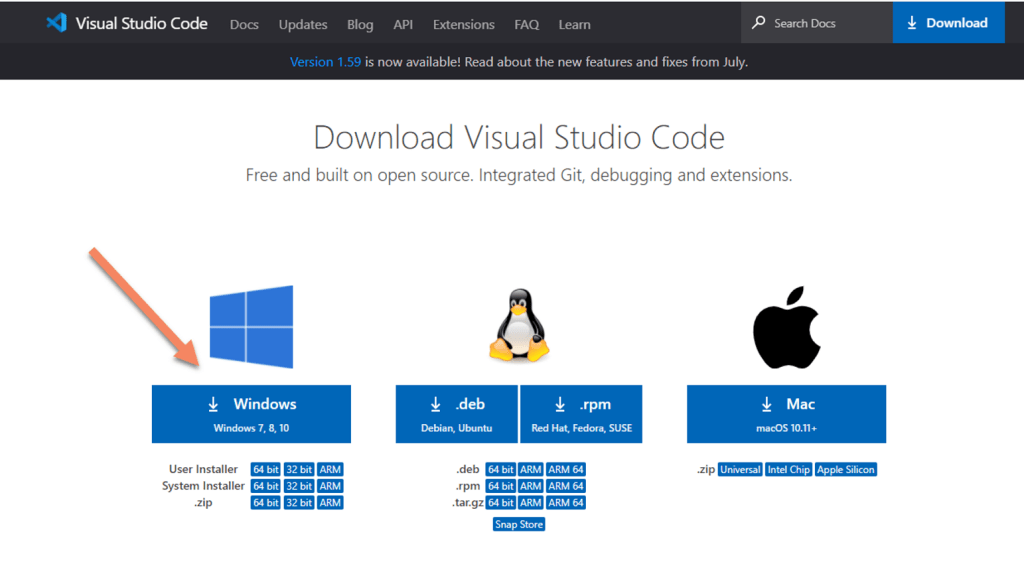
Install Visual Studio Code
Visual Studio Code is a source-code editor made by Microsoft for Windows, Linux and macOS. Features include support for debugging, syntax highlighting, intelligent code completion, snippets, code refactoring, and embedded Git.
Download latest Visual Studio Code to prepare terraform templates from https://code.visualstudio.com/download
Install Extensions in Visual Studio Code
Once installed, navigate to extensions tab in Visual Studio code and install required extensions.
For Terraform specific extension, search for “HashiCorp Terraform” and click on install.

You are now prepared to create and deploy resources using Terraform.
Happy Learning 🙂
 Padma Achanta's Insights on Database Technologies