The Terraform State file is a critical component when using Terraform for Infrastructure as Code (IaC). It is a JSON file that tracks the current state of your infrastructure managed by Terraform. This file is used by Terraform to map real-world resources to your configuration and to store metadata associated with those resources.
Key Points About the Terraform State File:
State File Storage:
- By default, Terraform stores the state file locally in the working directory with the name terraform.tfstate.
- In multi-team environments or production, it is recommended to store the state file remotely (e.g., in an S3 bucket, Azure Blob Storage, or Terraform Cloud) to allow collaboration and avoid conflicts.
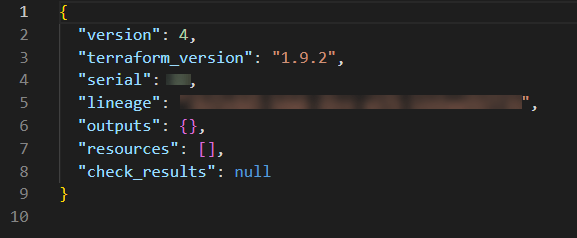
- The file looks like below.

Tracking Infrastructure:
- The state file is essentially a map of your Terraform-managed resources and their current configuration. It helps Terraform know what’s already been deployed and what needs to be modified, added, or removed.
- When you run terraform plan, Terraform uses the state file to compare the infrastructure’s current state with the desired state from your configuration files. When you run terraform Apply, Terraform uses the state file to make changes to the real infrastructure and updates it accordingly.
- The state file is the source of truth for Terraform and must be kept up to date. Any manual changes made to the infrastructure outside of Terraform (e.g., via the Azure Portal) can cause discrepancies between the actual state and the state file.
Below is a sample of how terraform.tfstate file content looks like.
Below are few challenges and possible solutions with terraform.tfstate file.
1. Sensitive Information Exposure:
The state file often contains sensitive data, such as passwords, secrets, and API keys. This is especially concerning if the state file is stored locally or shared improperly.
Challenge: Protecting the state file from unauthorized access is critical to avoid exposing sensitive infrastructure data.
Solution: Use remote backends (e.g., AWS S3, Terraform Cloud) that support encryption at rest and in transit. Additionally, use tools like Vault or other secret management solutions to handle sensitive data more securely.
2. State File Corruption
The state file is meant to be managed by Terraform. Manual changes to the state file can cause issues, such as inconsistent infrastructure states.
Challenge: Corrupt state files can lead to errors during terraform plan and terraform apply commands, potentially resulting in inconsistent deployments.
Solution: Avoid manual editing of state files. Use Terraform’ s built-in commands, such as terraform state, to manipulate state safely. Keep backups and use remote backends to reduce risks of file corruption.
I will provide detailed steps how to overcome the challenge of terraform state file corruption in my upcoming posts.
3. Lack of Versioning
If you are storing state files locally, there’s no versioning built into the file. As a result, if the state file is accidentally deleted or overwritten, you lose the history of your infrastructure.
Challenge: Losing the state file can results in desynchronization between the infrastructure and Terraform configurations, leading to potential re-deployment or configuration drift.
Solution: Store the state file remotely in a backend that supports versioning (like AWS S3 with versioning enabled, Terraform Cloud). This ensures that you can revert to a previous state version if something goes wrong.
4. State Locking Issues
When working in a collaborative environment, state file locking ensures that only one user or process modifies the state at a time. However, issues can arise when the lock isn’t released or when Terraform crashes before releasing the lock.
Challenge: This can cause Terraform to become stuck in a locked state, preventing other users from applying changes.
Solution: If you are saving state file remotely, check if the file is truly locked. From remote backends like Terraform Cloud, you can manually unlock the file. If using AWS S3 with DynamoDB, you can manually delete the lock entry from DynamoDB table. From Azure blob storage, you can delete the lock container or object if required. After releasing lock, re-run terraform plan and apply commands to access state file and resume it’s operations.
Happy Learning 🙂
 Padma Achanta's Insights on Database Technologies